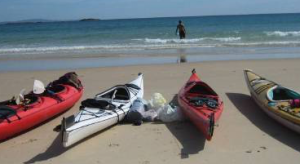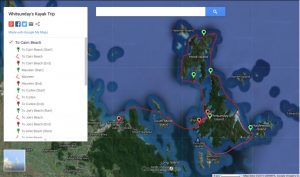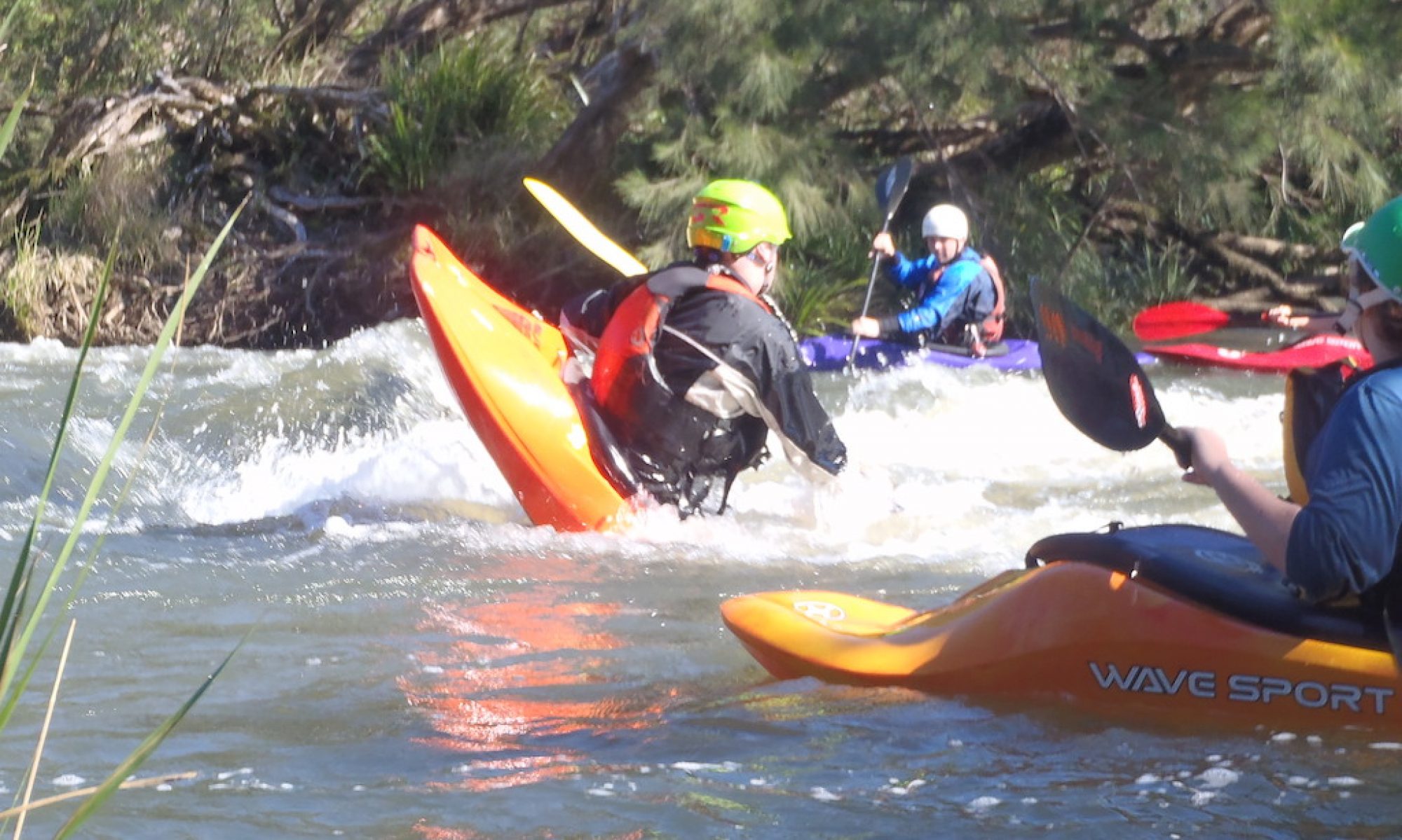

Regular sea kayaking sessions start on Wednesday March 11 and March 25. These will coincide with the general Wednesday training sessions.
Continue reading “Sea Kayak training”
Regatta gathering Tue
Come along and meet up with new & old club members. Tuesday March 10 2009.
Continue reading “Regatta gathering Tue”
Come and try & BBQ
Want to try kayaking? Do your friends want to try? This is your chance.
The beginning of semester come and try day is scheduled for Saturday 7 March, between 8:00 AM and 11 AM. Prospective members are encouraged to come.
Flatwater events 2009
<$MTInclude module="Navkey flatwater"$>
<$MTInclude module="Triplist"$>
Contacts
- For enquiries regarding specific trips, please contact the person organising the trip.
- For general information about sea kayaking trips, contact the club’s flatwater representative.
- For changes & additions to this page, please contact the webadmin
LM: Feb 10
Whitewater Events 2009
<$MTInclude module="Navkey whitewater"$>
<$MTInclude module="Triplist"$>
The club has a display on Wednesday 25 Feb 2009 as part of the UQ orientation week’s Market Day. <$MTInclude module="Navkey seakayak"$> <$MTInclude module="Triplist"$>
A regular weekly series of flatwater training and racing is beginning on Wednesday afternoons at 5-5:15PM.
Would you like to get updates when this website is updated? Instructions for how to configure your email program to receive website updates automically are now available. Remember there are many internet resources available to members. How often do you check the club website? Would you like to be notified when its updated? This page explains how. The notification method is called RSS (news feeds). All you need do is cut and paste an RSS URL into a suitable program such as a modern email program, news reader, and/or screen saver. The method many people prefer is to have updates show up in their email program automatically – as though they were email. This page explains how to receive website updates in your email client. It is actually very simple to do. In this example, the Safari browser (Windows or mac) and the mail program (mac) is used. Other mail programs and browsers may have slightly different methods, but the basic idea is just the same. The goal is to get new website postings (“feeds“) to appear in your email program. The “feed” can be set to appear as though they were a normal email account. To so this, the email program must “subscribe” to the RSS feed. This is simply a special kind of URL that the website supports. In this picture, notice how the RSS feeds are listed just like separate email accounts within the email inbox.
When you click on the RSS feed, it lists recent and read website posts just like it would show email. Step one: get the correct RSS address (i.e. the news feed URL) When you bring up the RSS feed in your browser, it will show you all the latest posts on the website. Something like this… There are TWO methods that may be used by your system to get the address (URL) into your email program. Method 1: Use your web browser. Method 2: Copy and paste the feed URL. Every program that has the ability to “subscribe” to a newsfeed, will have a menu option somewhere that will allow you to paste a RSS feed’s URL into it. These screenshots are from the Mail email program (mac). Open your mail program, and select “add RSS feed” from the menu. Paste the club’s news feed URL into the box. Email applications may list your RSS feeds separately to your email accounts. At any time you can instead show your RSS feed within your mail’s inbox, rather than in a separate section. Simply right click on the RSS feed icon, and select the corresponding option. Hopefully this guide will help you subscribe to canoe club news feeds from your email or related program. It is really simply a matter of cutting and pasting a simple URL. Don’t let the “feed://” and terminology confuse you. Configuring a real email account in your email program is a lot harder than this.O-Day Display Wed 09
Continue reading “O-Day Display Wed 09”Sea Kayak trips 2009
Contacts
LM: Feb 10
Wednesday Training & Races
Starts Wed 18 Feb 09!
Website updates via email…
Website via Email
Get notified when the website is updated
The goal

Email program showing emails, with RSS feeds acting like email accounts.

Mail program showing how website updates are read.Is this what you want? Here is how to do it
Often websites have a link that let you view that website’s RSS feed within your web browser. Typically there will be an RSS button appear in the address field of the browser (such as that at the top of this page)

or the page will have an “RSS” button ( or
or  ).
).
Clicking on these will bring up the RSS feed in your web browser (the club site has both).

RSS feed shown within a browser (note the URL in the address field)
… to return to your web page, press the RSS button in the address field again.
TWO METHODS
Some browsers let you subscribe to your mail program directly from your web browser. If you look on this example page (picture above), there is a link you can click on that automatically adds the RSS feed (“subscribe”) to your email program (see red instructions).
Not all browsers let you subscribe automatically to your preferred program. In these cases you need to copy and paste the special URL into your program (Email/ newsreader/ screensaver/ etc). If you go to the address field for the news feed page in your web browser, you will be able to cut and paste the address (URL). It will start with feed:// instead of http:// . As you can see, the general website feed URL for the canoe club is feed://www.uqcanoeclub.net/atom.xml


If you wish your RSS feed to appear in your email inbox, then click on “Show in inbox”.
Moving the feed into your inbox”
.gif)